



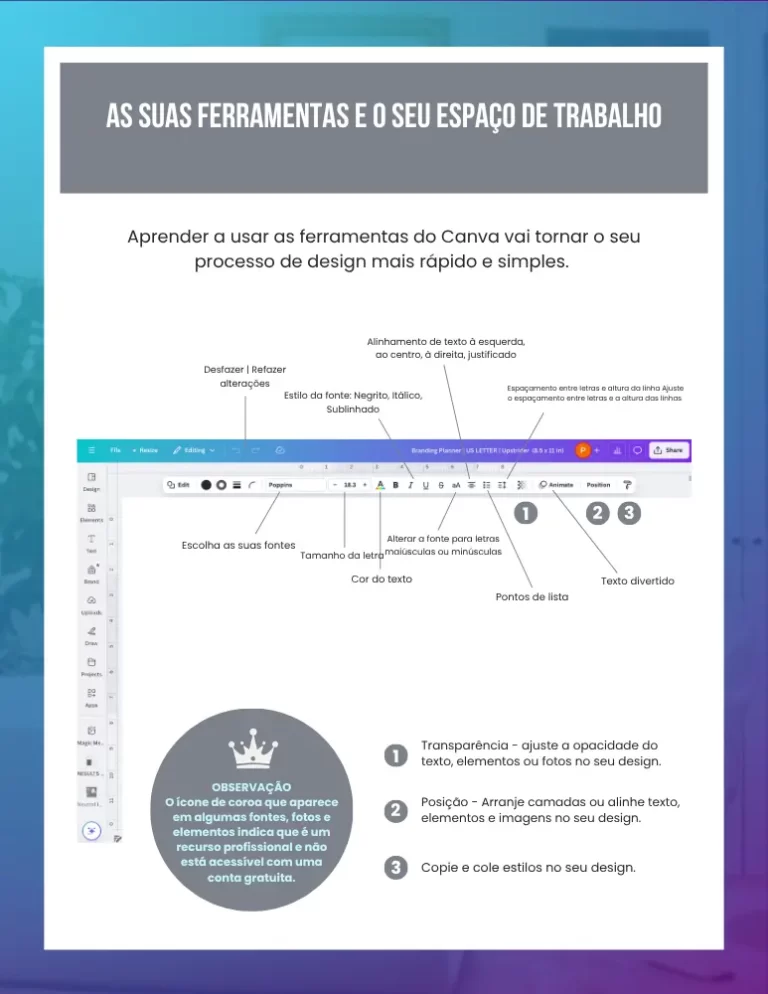
The quick answer: Real agility comes when you replace manual clicks with keyboard commands. Use the T (Text), R (Rectangle), L (Line) and C (Circle) to create elements instantly. The innovation lies in the practical automation of repetitive movements that steal your creative time throughout the day.
1. Saving Time with Base Commands
We're here to hold your hand and make your process easier. We often lose focus on the main idea because we have to stop everything to look for an “add text” button in the side menu. Using the keyboard allows your hand to follow your thoughts. If an idea comes to you, press T and start typing. If you need to highlight a sentence, press R and the background rectangle appears ready to be adjusted.
2. Effortless organization: Duplicate vs. Copy
Forget the traditional “copy and paste” that forces you to reposition the object every time. Practical innovation lies in CMD/CTRL + D. When you duplicate an element and move it once, Canva understands the pattern. On subsequent duplications, it maintains the exact distance, ensuring that your list of topics is perfectly aligned and looks professional, without that “crooked” look you get from rushing.
3. Layer Control and the end of “disappearing”
You know when you upload a photo and your text disappears into the background? Instead of dragging everything to the side, use the layer shortcuts. Hold down CMD/CTRL and using the brackets [ or ], You bring the element forward or send it back, as if you were arranging sheets of paper in a pile. This keeps your design organized and you in full control of the composition.
To align several icons or photos at once without suffering, select all of them and use ALT + SHIFT + T. Canva does the mathematical distribution of spaces for you. It's the secret to that professional design finish where everything looks millimetrically calculated.
4. Quick Selection and Grouping
To move blocks of information without messing up what you've already lined up, use the CMD/CTRL + G. By grouping the elements together, they behave like a single piece. This gives you enormous confidence when testing different positions for your title and logo within the artwork.
Canva Ultra Fast Course
Complete Canva course. Less than 2 hours to master the tool.