



The quick answer: Use filter operators to isolate professional assets from generic elements. Apply the “Cropped” (PNG) and search for “Brand IDs” to guarantee consistency. The innovation lies in practical curation: you stop searching and start finding the elements that support a High Ticket aesthetic.
1. The Logic of the Authority Filter
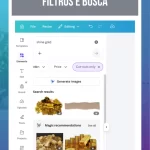
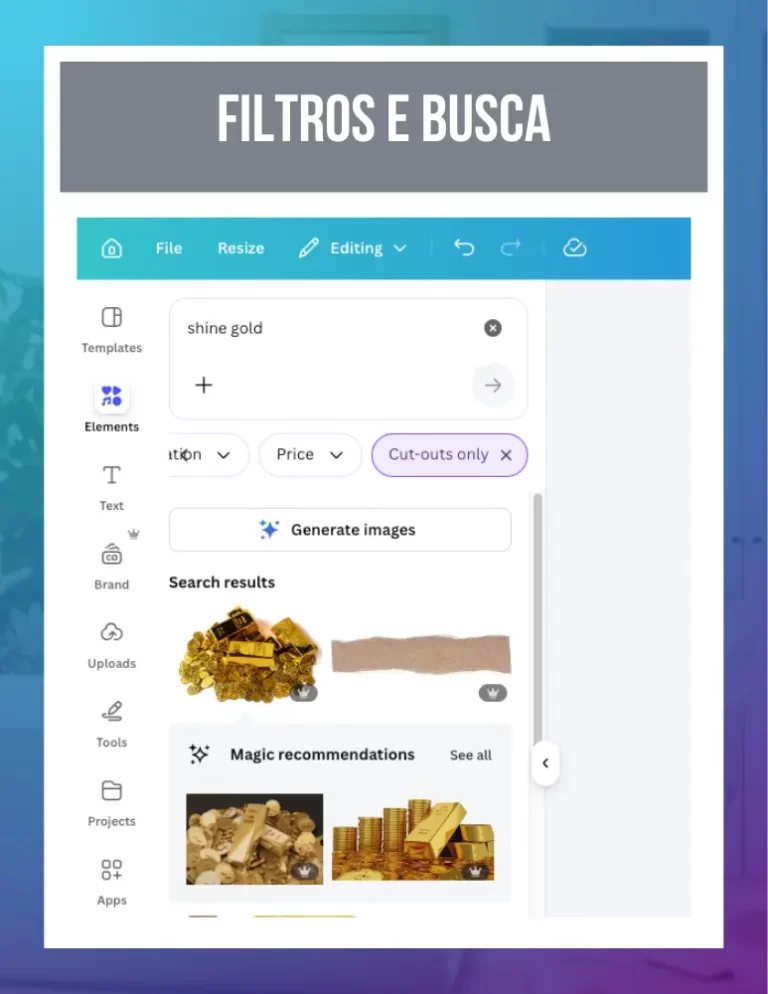
Canva's library is huge and, precisely because of this, it can be confusing. The innovation lies in extracting only the top of the visual pyramid. If you search for generic terms, you'll get common results. Our golden tip is to search for terms in English and apply the filter “Pro only”. This ensures that the icons and photos you use are not the same as the ones everyone else is using, raising the perceived value of your brand.
2. Strategic Search Operators
There are “secret” commands that make your life easier when searching. Instead of scrolling endlessly, use technical terms:
- Brand: [ID] - It finds all the elements created by the same designer, ensuring that the style is identical.
- Format: Static - It only isolates still images, preventing GIFs from distracting you while you're editing a PDF or a serious post.
- Price: Pro - It focuses only on the high-quality assets of the premium library.
Whenever you find an element that perfectly matches your brand, save the “Magic Recommendations” code. The practical innovation lies in building your own asset library in a supporting document, so you're never dependent on luck to find the right icon again.
3. The Secret of “Similar Elements”
Found an icon but need a similar one? Click on the three dots and select “See similar items”. Canva will open that artist's complete collection. This creates an automatic editorial line for your design, where all the elements look like they were custom-designed for your project.
Canva Ultra Fast Course
Complete Canva course. Less than 2 hours to master the tool.